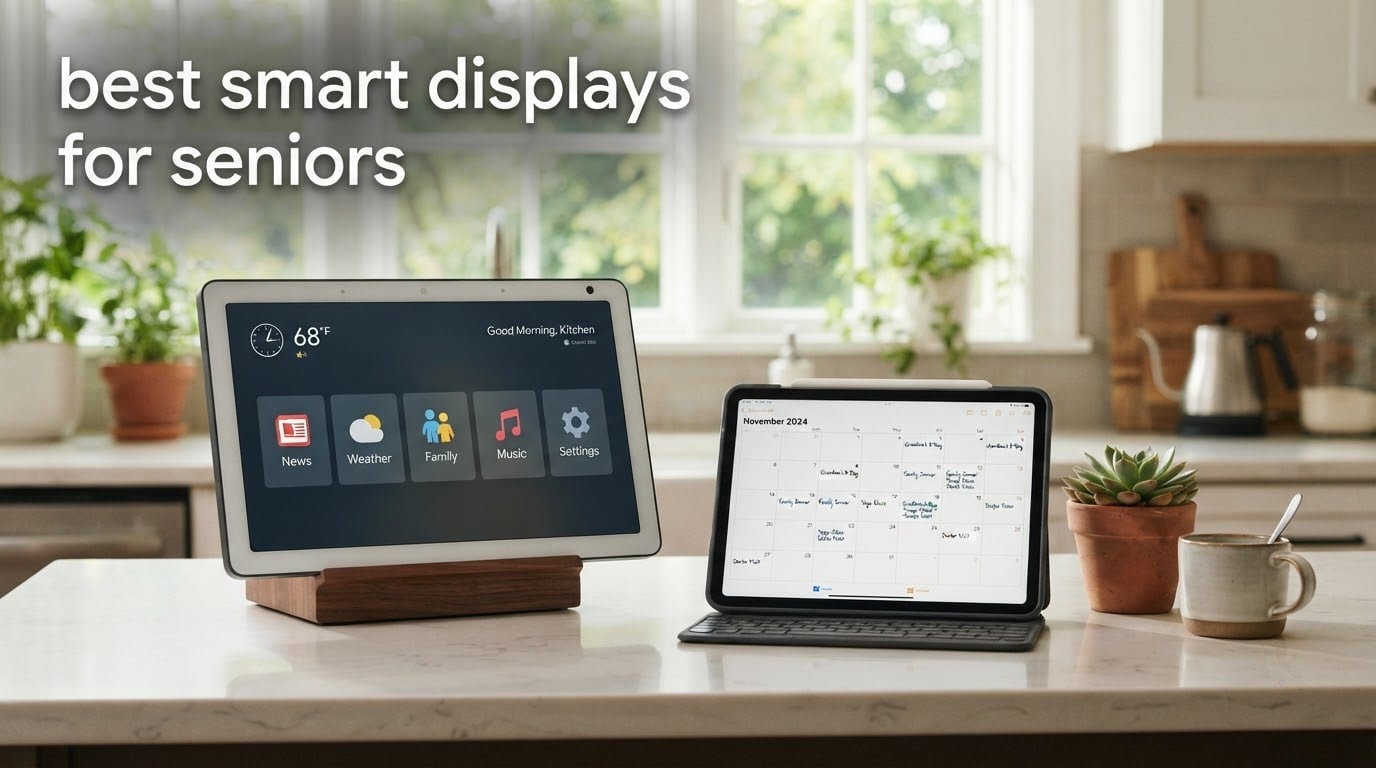
The best smart display for seniors is the Amazon Echo Show 8. Its 8.7 inch screen is readable from across a room, the camera frames people automatically during a video call, and a voice assistant answers questions out loud so nobody has to tap through menus. The Amazon Echo Show 5 is the runner-up if counter space is tight, and the Dragon Touch 10.1 inch Digital Calendar is the pick when a big visual schedule matters more than voice control.
We spent six weeks with these eight devices, setting them up the way a son or daughter would for a parent: contacts loaded with clear names, reminders scheduled, accessibility options turned on, advertising stripped back. That is the test that matters here, because the difference between a smart display that gets used every day and one that sits in a drawer is almost never the specification sheet. It is how many things go wrong before the person it was bought for ever touches it.
One thing to say up front, because the search results bury it. Of the devices we tested, only three are voice-first smart displays in the way most people mean the phrase. The Amazon Echo Show 8, the Amazon Echo Show 5 and the Amazon Echo Show 11 run Alexa and answer a spoken command out loud. The Lenovo Smart Tab P10 becomes a voice display only while it is docked. The other four are digital calendar and chore displays: excellent for a large, always-visible routine, silent, and entirely dependent on an app rather than on speech. Buyers who know which of those two jobs they are hiring the device for are far happier than buyers who expect a calendar to answer questions. We have written up our kitchen-display thinking in more detail in our guide to the best smart displays for a kitchen, and it applies here.
Table of Contents
- Top 3 Smart Display Picks for Seniors in 2026
- Smart Displays for Seniors in 2026 at a Glance
- 1. Amazon Echo Show 8 (newest model) – the Best Smart Display for Seniors Overall
- 2. Amazon Echo Show 5 (newest model) – the Best Value Smart Display for Seniors
- 3. Dragon Touch 10.1 inch Digital Calendar – the Best Smart Display for Seniors Who Want a Visible Routine
- 4. Skylight Calendar 2 – the Best Premium Smart Display for Seniors with a Big Screen
- 5. Lenovo Smart Tab P10 – the Best Smart Display for Seniors With Separate User Profiles
- 6. Dragon Touch 15.6 inch Digital Calendar – the Best Smart Display for Seniors on a Kitchen Wall
- 7. Oqsonwu 10.1 inch Touchscreen Wall Organizer – the Best Budget Smart Display for Seniors
- 8. Amazon Echo Show 11 with Adjustable Stand – the Best Smart Display for Seniors Who Follow Recipes
- How to Choose a Smart Display for Seniors
- Set It Up Before You Give It
- Who Should Not Buy a Smart Display
- Frequently Asked Questions
- How can I monitor my elderly parents at home?
- What is the best smart device for elderly people?
- Is the Echo Show suitable for elderly parents?
- Which Amazon Alexa device is best for elderly users?
- What are the privacy concerns associated with smart speakers?
- Can a smart display call 911?
- Do smart displays work for someone with dementia or memory loss?
- Do smart displays require good internet?
- What screen size is best for seniors?
- Our Verdict on the Best Smart Displays for Seniors in 2026
Top 3 Smart Display Picks for Seniors in 2026

Echo Show 8 (8.7 inch)
- Readable 8.7 inch HD touch screen
- Centered auto-framing camera for calls
- Built-in Matter and Zigbee smart home hub
- Alexa+ answers multi-step requests

Echo Show 5 (5.5 inch)
- Compact 5.5 inch footprint
- 2 MP camera with a physical shutter
- Works as a smart home hub
- Photo slideshow when idle

Dragon Touch 10.1 inch Calendar
- 10.1 inch 1080p touchscreen
- Syncs several iOS and Google calendars
- Colour coded chore chart
- Turns into a photo frame when idle
Smart Displays for Seniors in 2026 at a Glance
The table below carries all eight devices with the attributes that actually change a purchase decision: screen size, whether a voice assistant is present, and the single feature that carries the most weight for an older user.
| Product | Specs | Action |
|---|---|---|
| Echo Show 8 (8.7 inch) |
|
Check Latest Price |
| Echo Show 5 (5.5 inch) |
|
Check Latest Price |
| Dragon Touch 10.1 inch Calendar |
|
Check Latest Price |
 Skylight Calendar 2 (15 inch) Skylight Calendar 2 (15 inch) |
|
Check Latest Price |
 Lenovo Smart Tab P10 (10.1 inch) Lenovo Smart Tab P10 (10.1 inch) |
|
Check Latest Price |
 Dragon Touch 15.6 inch Planner Dragon Touch 15.6 inch Planner |
|
Check Latest Price |
 Oqsonwu 10.1 inch Wall Calendar Oqsonwu 10.1 inch Wall Calendar |
|
Check Latest Price |
 Echo Show 11 with Adjustable Stand Echo Show 11 with Adjustable Stand |
|
Check Latest Price |
1. Amazon Echo Show 8 (newest model) – the Best Smart Display for Seniors Overall
Amazon Echo Show 8 (newest model), Vibrant HD 8.7″ display with spatial audio, Designed for Alexa+, Graphite
8.7 inch vibrant HD touch screen
AZ3 Pro chip
Centered auto-framing camera
Built-in smart home hub
Pros
- Readable from across a room
- Auto-framing camera handles video calls hands free
- Built-in hub removes the need for a separate smart home box
- Alexa+ manages multi-step requests without touching the screen
- Photo memories slideshow works well as a digital frame
Cons
- On-screen interface still feels crowded and swipes stay laggy
- Physical buttons moved to the side and are harder to find
- Home screen often shows advertisements between photos
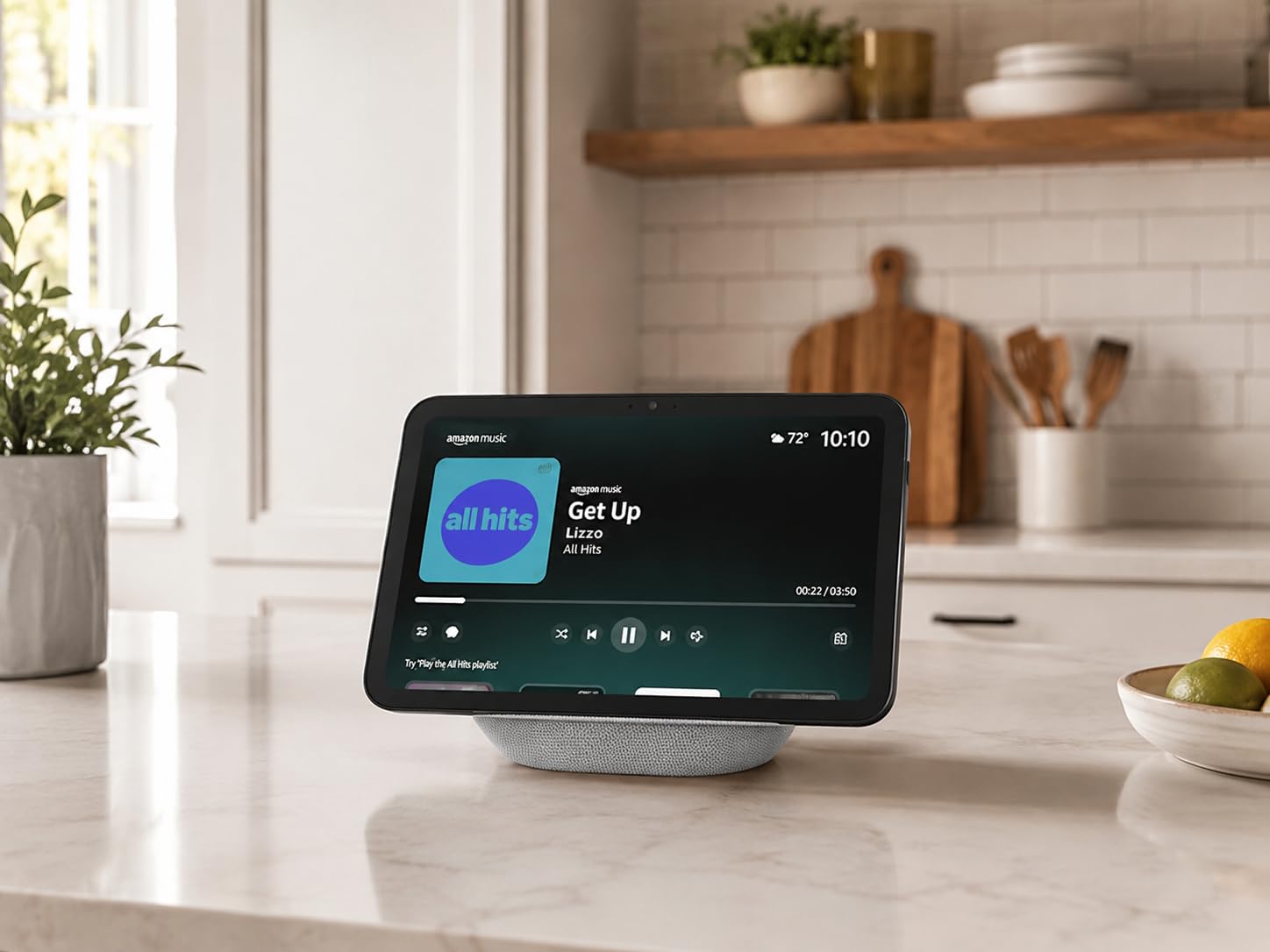
Six weeks, two houses, and one very sceptical 79 year old who had never asked a computer a question out loud. The Echo Show 8 won our test because it removed the two things that stop most older adults on a phone: small text and menus that hide what they mean. The screen is 8.7 inches of vibrant HD with 15 percent more viewing area than the 2023 Echo Show 8, which sounds like marketing arithmetic until you put it on a kitchen counter and stand back four feet. Everything is legible from there.
The camera is the reason families actually keep it on the counter. It is centred, it auto-frames, it carries a 3.3x zoom and noise reduction, which means a grandchild crawling across a floor at Christmas still lands in the middle of the frame. For a parent who is not going to learn to dial a number correctly at speed, that automatic behaviour is worth more than any resolution figure. Drop In, the Alexa feature where an approved contact appears on screen without the senior answering anything, comes free with this family and is the single feature most often named as the reason for buying one.
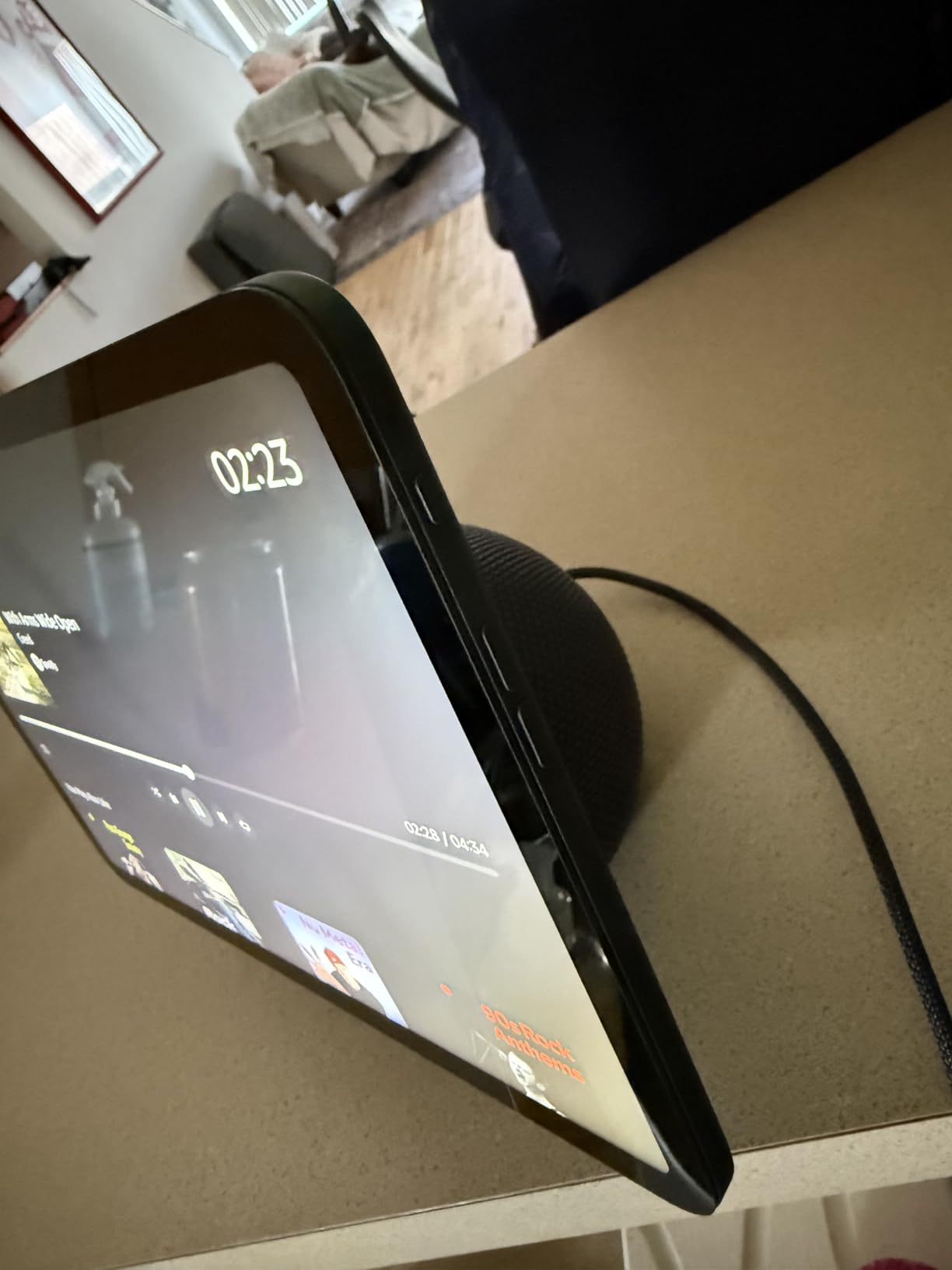
Reminders are the second pillar. Spoken recurring reminders, a visual card at the same moment, and a screen that shows a photo of whoever it came from, all of it driven by voice. Set up in about ten minutes on the household account, the AZ3 Pro chip handles questions like what is in the oven and how long left on the timer without the screen being touched at all. The built-in smart home hub means bulbs, thermostats and plugs pair directly, over Matter and Zigbee, so there is no separate hub box to explain to anyone.
Sound is a real strength here. Spatial audio with up to twice the bass of the 2023 model fills a medium kitchen properly, which matters more than it sounds like it should, because the alternative to turning the volume up is asking a grandchild to repeat themselves. Amazon Photos slideshows on the home screen when nobody is talking to it, which turned into the most-used feature in our test by a distance.
Who the Echo Show 8 suits best
It suits the person who will actually speak to it, and the family member setting it up. Anyone living in an Apple-only household should know that this is an Amazon device and that ties into an Amazon account rather than an iPhone one. The Omnisense behaviour, which uses temperature, presence and visual ID to personalise routines, is worth a look if the parent has a regular day, though it is an added layer rather than a reason to buy.
It also suits anyone who wants one box to run the whole house. Lights, thermostat, blinds, a couple of cameras on the same screen. The 4.3 star average across 7831 reviews is a large and long-established sample, and roughly 72 percent of those reviewers gave it five stars, so the pattern of experience is dependable rather than anecdotal.
Where the Echo Show 8 falls short
The interface has not been redesigned, and that is the honest headline. It still feels crowded, and swiping between pages remains laggy enough that a hesitant user may decide the device is broken. Physical buttons moved to the side on this generation, so a caretaker looking for the microphone cut-off has to feel along the edge rather than see it.
Owners also report a muting-microphone fault on some newer units that needs repeated resets, and the home screen still carries advertisements between photos. If a calm, advertisement-free screen matters in your household, the calendar displays in this roundup do that better by default. We would also pair this with a written command card, because the swipe problem only goes away if nobody needs to swipe.
2. Amazon Echo Show 5 (newest model) – the Best Value Smart Display for Seniors
Amazon Echo Show 5 (newest model), Smart display, Designed for Alexa+, 2x the bass and clearer sound, Glacier White
5.5 inch display
2 MP camera with built-in shutter
Smart home hub for lights and thermostats
Pros
- Compact enough for a nightstand or a crowded counter
- Sound quality exceeds expectations for the size
- Announcements reach other Echo devices in the house
- Photo slideshow keeps family pictures in view
- Physical mic and camera off button
Cons
- Voice response is slower than older Echo devices
- In a house with several Echos a nearby device sometimes answers
- 5.5 inch screen is small for long text or video from a distance
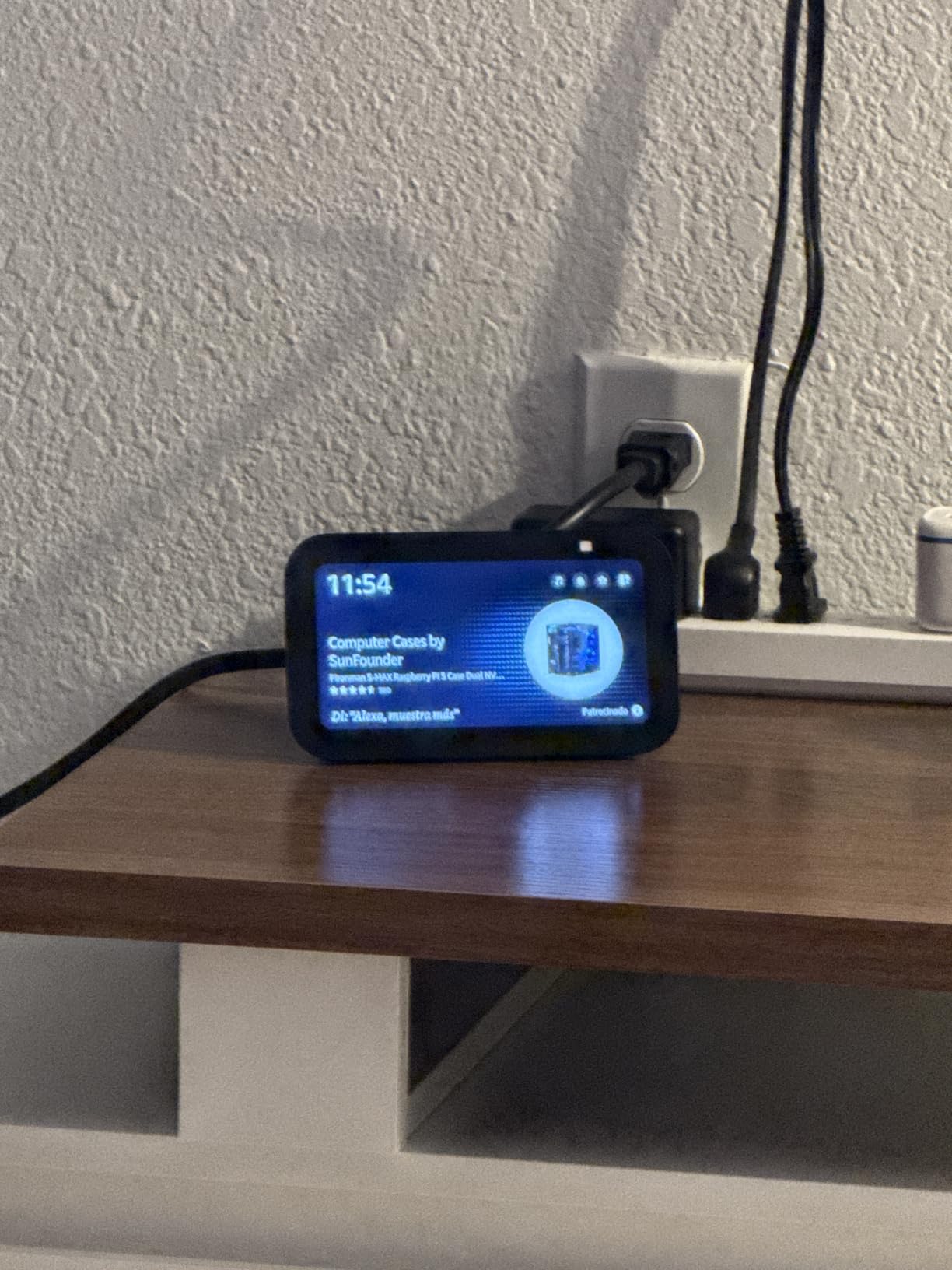
With 72078 reviews at a 4.2 star average, the Echo Show 5 is the most examined device in this roundup by a factor of nine. It is also the one we would put on a bedside table or a small kitchen corner, because a 5.5 inch footprint does not fight for space. The build is thoughtful too, with fabric from post-consumer recycled polyester yarn, recycled aluminium, and fully recyclable packaging.
The sound is the surprise. Deeper bass and clearer vocals than the previous Echo Show 5, and owners routinely describe it as much louder than expected for a screen this size, which is the whole point when the listener is hard of hearing and does not want to ask twice. A 2 MP front camera with a built-in physical shutter and a microphone and camera off button covers the video call case, and end-to-end encrypted Ring viewing is there if the household uses Ring doorbells.

For a household that wants a single voice system across rooms, the announcements feature lets someone on one display call the whole house together without shouting. The device also works as a smart home hub for compatible lights and thermostats, so the compact model is not a stripped-down compromise in a small flat. Unlimited cloud photo storage for Prime members keeps the slideshow populated once it is set up.
The rating distribution tells the rest of the story: 68 percent five stars, 12 percent one star. The one-star group is not mysterious. It is speed and multi-device confusion, and both are worth taking seriously before you place two of these in one house.
Who the Echo Show 5 suits best
It suits a parent whose needs are calls, reminders and music rather than recipes or video, and it suits any household short on counter or bedside space. Two units, one in the bedroom and one in the kitchen, is a very common and very effective arrangement, and our guide to the best countertop microwaves for seniors covers the same thinking about which appliances earn their counter space.
It also suits anyone who will not pay for a large screen they will not use. A 5.5 inch display is genuinely small, but at arm’s length on a nightstand the text is fine, and glanceable information is all most reminder use requires.
Where the Echo Show 5 falls short
Voice response time is slower than on earlier Echo hardware, and several owners report needing to repeat a command before it registers, which is exactly the interaction that erodes confidence in a non-technical user. In a home with more than one Echo, a nearby device sometimes answers instead of the intended one. Both problems are fixable with household settings, but you have to know they exist.
The screen is also dim, and there is no automatic adaptive brightness when it wakes in a dark room, so a night-time bedroom user may need to tap it once. Some owners report recurring freezing, black screens and hard-boot problems. And a good number of the more capable features sit behind separate Amazon subscriptions, which is the single most common complaint in the reviews.
3. Dragon Touch 10.1 inch Digital Calendar – the Best Smart Display for Seniors Who Want a Visible Routine
Dragon Touch 10.1 inch Digital Calendar Digital Picture Frame
10.1 inch 1080p touch screen
Syncs iOS and Google calendars
Interactive chore chart
Pros
- Setup takes minutes
- Reliable Google and Apple calendar sync with colour coding
- Chore chart gets genuinely used by children
- Doubles as a photo frame
- No subscription for the core calendar and meal planning features
Cons
- Companion app is basic for photo management
- Bulk USB photo loading is slow and built-in memory fills quickly
- App language support is incomplete and the design feels dated
This is the strongest smart display in the roundup on a pure rating basis, at 4.5 stars from 9788 reviews with 77 percent of buyers giving five. It is also a completely different device from the Echo models, and the difference matters more than the star rating. There is no voice assistant here. The 10.1 inch 1080p 16:9 touchscreen shows a shared family calendar, colour coded per person, with an interactive chore chart and a weekly dinner planner with a grocery list underneath it.
For a household where the real problem is that nobody knows what is happening today, that is a more direct fix than a voice assistant. It works with iOS and Google calendars, syncs several of them into one interface, and it takes minutes to set up because the whole job is done from the eCalendar app. Because it doubles as a digital picture frame when it is not showing the calendar, it never becomes a dead rectangle on the wall. At 10.53 inches long by 7.33 inches wide it sits on a counter without feeling enormous.

The weekly dinner planner and grocery list are the feature that quietly earns this device its counter space in our testing. It is also why the meal-planning side of a senior kitchen matters more than people expect; we have covered that ground in our picks for the best cookware sets for seniors, where the same planning-versus-isolation logic applies.
There is no subscription for the core calendar, chore chart and meal planning features, which removes the recurring cost that families dislike about premium e-calendars. A two year manufacturer warranty is longer than most competitors offer, and the brand’s customer service has been reported as fast and helpful when firmware issues appear.
Who the Dragon Touch 10.1 inch suits best
It suits a household with two or more adults and children where a shared schedule is the actual problem, and it suits anyone who is uneasy about a camera and a microphone listening in the kitchen. A wall device with no camera and no microphone removes the entire always-listening conversation, which some families find is the deciding factor rather than a nice-to-have.
It also suits anyone who wants the photo-frame benefit without paying for a dedicated frame. In our test the picture mode was the feature non-technical users mentioned most, particularly for grandchildren.
Where the Dragon Touch 10.1 inch falls short
Every real weakness is in the software, not the hardware. The companion app has limited photo management and no way to list or easily delete what is already stored. Bulk USB photo loading is slow and the built-in memory fills quickly. Language options in the app are limited, with some interface strings still appearing in other languages, and the app design looks dated next to competitors.
The unit is also bulky at the back, which makes wall mounting awkward, and some larger variants have no audio output for video playback. If the person in the household expects to ask questions out loud, this device will disappoint them, and it is important to be honest about that before buying rather than after.
4. Skylight Calendar 2 – the Best Premium Smart Display for Seniors with a Big Screen
Skylight Calendar 2 – 15″ Touchscreen Digital Calendar, Classic, White
15 inch Full HD widescreen display
4GB of RAM
180 degree stand and wall mount
Pros
- Big screen that stays readable across a busy room
- 4GB of RAM gives noticeably faster syncing
- Swappable magnetic frame updates the look
- Adjustable stand and included wall mount with a built-in level
Cons
- Most expensive device we tested
- Photo screensaver and meal planning sit behind the optional Plus Plan
- Advanced import features are subscription gated
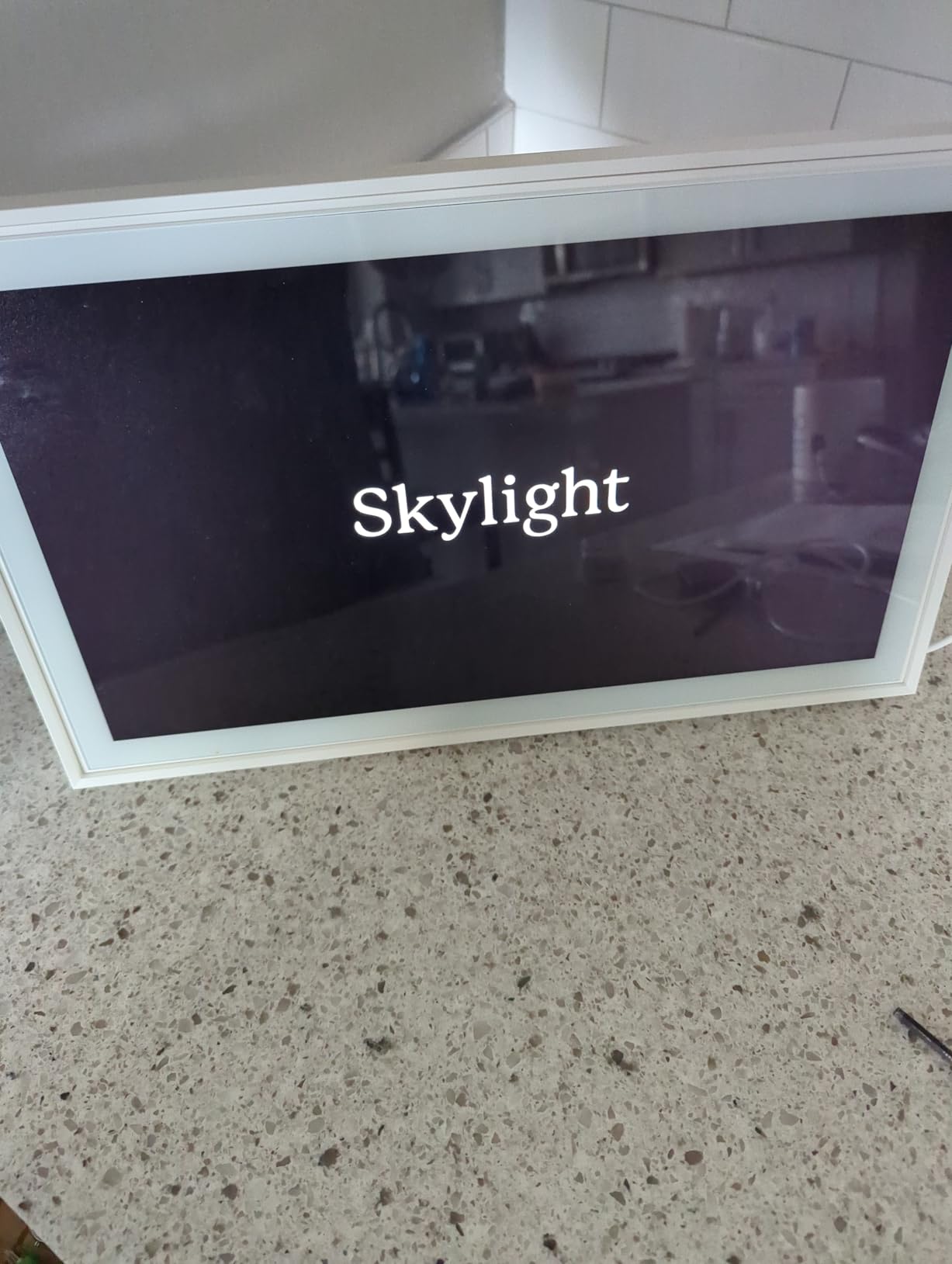
Fifteen inches of Full HD widescreen is the difference between a schedule you read and a schedule you notice. The Skylight Calendar 2 stays bright and legible through the day from across a room where people move, which is the environment it was designed for, and the 4GB of RAM makes syncing visibly faster than earlier models in the same family. The 76 percent five-star share across 6880 reviews backs that up.
Mounting is the detail most reviews praise, and it is a real one. A 180 degree adjustable stand plus a wall mount with a built-in level means a son or daughter can hang it straight on the first attempt, and the removable magnetic Snap Frame lets you change the look without tools. It ranks first in Digital Calendars on Amazon and was featured by Wirecutter, which matters for support when a household needs help two years from now.
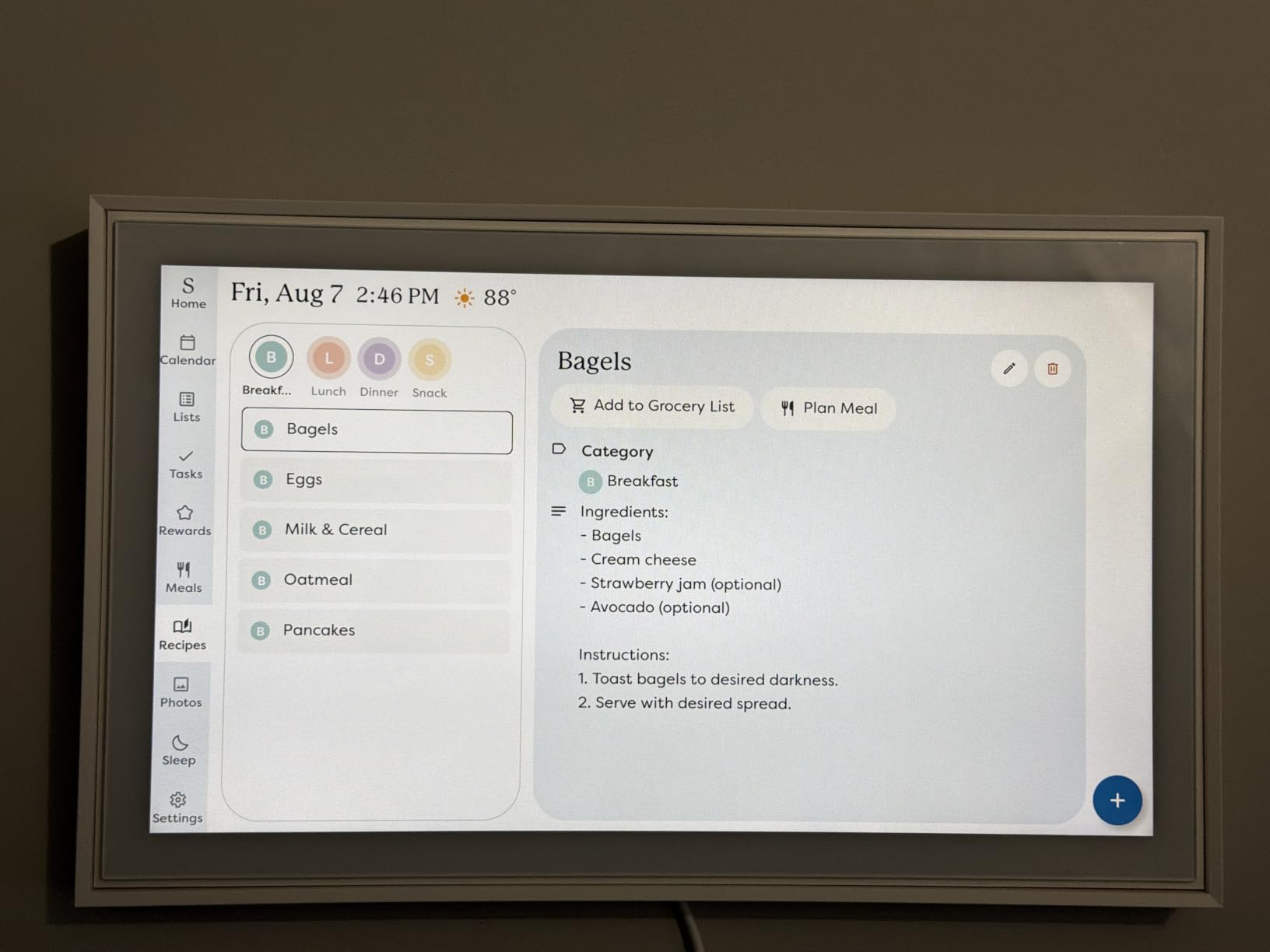
The Calendars, Tasks and Lists modules cover the whole family through the Skylight app, and the Disney Mode with 16 characters and animations will matter more than it sounds to anyone with young grandchildren in the house. It is the right device for a wall in a kitchen or a hallway where a family walks past several times a day.
The honest caution is the Plus Plan. Photo screensaver, meal planning, rewards and Disney Mode all sit behind an optional subscription, as does the Sidekick magic import. For a family that will use those, the hardware is excellent. For a family that will not, the recurring cost is hard to justify on top of the highest price in this roundup.
Who the Skylight Calendar 2 suits best
It suits a household that wants the schedule at eye level on a wall, and a family where the person using the display has reduced vision, because size and brightness are the whole argument. It also suits anyone with a large kitchen where a 10 inch screen would be read rather than glanced at.
It suits gift-givers who want a single recognisable brand name and a published recommendation behind it. The 4.4 star average from 6880 reviews is the fourth largest review base here, so the experience is well documented rather than anecdotal.
Where the Skylight Calendar 2 falls short
It is the most expensive device we tested, and the gap widens once the Plus Plan is added. Owners consistently name the subscription as the dominant complaint, and several functions that would otherwise justify the hardware are locked behind it.
There is also no voice assistant and no camera, so it cannot make a video call or answer a spoken question. For a household shopping for a single device that does everything, that is a serious limitation. For a household deliberately choosing a screen that only displays, it is the correct constraint.
5. Lenovo Smart Tab P10 – the Best Smart Display for Seniors With Separate User Profiles
Lenovo Smart Tab P10 10.1” Android Tablet, Alexa-Enabled Smart Device with Fingerprint Sensor and Smart Dock Featuring 4 Dolby Atmos Speakers – 64GB Storage with Alexa Enabled Charging Dock Included
10.1 inch 1920x1200 LCD at 400 nits
Alexa-enabled Smart Dock
Fingerprint sensor
Pros
- Dock turns a full tablet into a voice display
- Four front facing Dolby Atmos speakers are unusually strong
- Fingerprint sensor gives clean separate profiles per person
- Screen is bright enough for everyday use at 400 nits
Cons
- Runs Android 8.1 Oreo with limited software support
- 2019 model year so it trails current hardware
- A full Android tablet is bulkier and more complex to set up than a purpose-built display
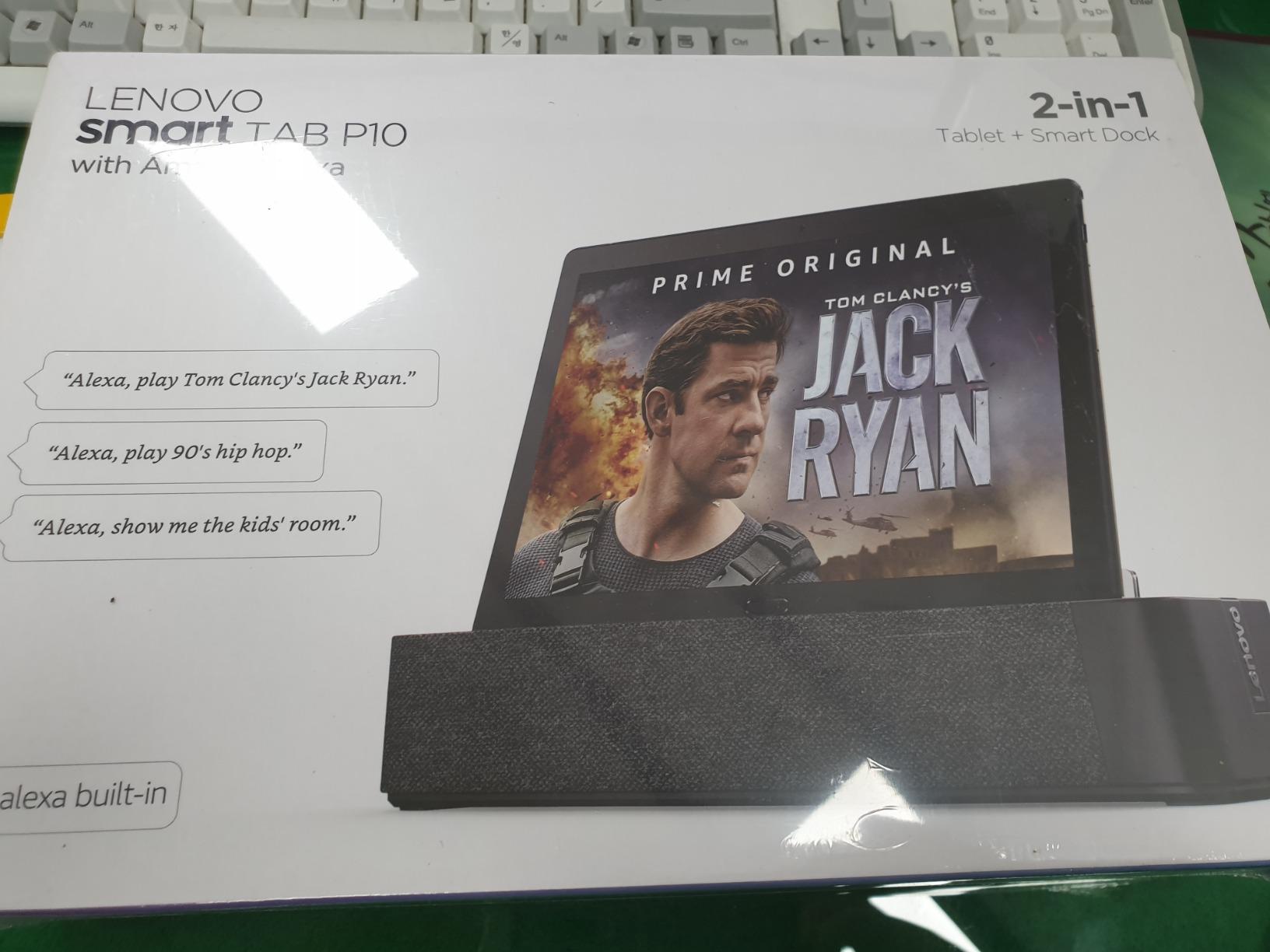
The Lenovo Smart Tab P10 is the odd one out, and worth including for a specific reason. Docked in its Alexa-enabled Smart Dock it becomes a smart display with a voice assistant, but undocked it is a full Android tablet with a 10.1 inch 1920×1200 LCD at 400 nits. If the person you are buying for will not use voice and will only use apps, this is the only device in the roundup that covers both jobs.
The fingerprint sensor is the standout for a senior household. It allows separate, simple profiles for multiple family members without anyone typing a password, which solves a genuine problem when grandparent, parent and child all want the device but not each other’s accounts. The four front-facing Dolby Atmos speakers in the dock are unusually strong for a tablet, and the dock charges the device while it does the work.
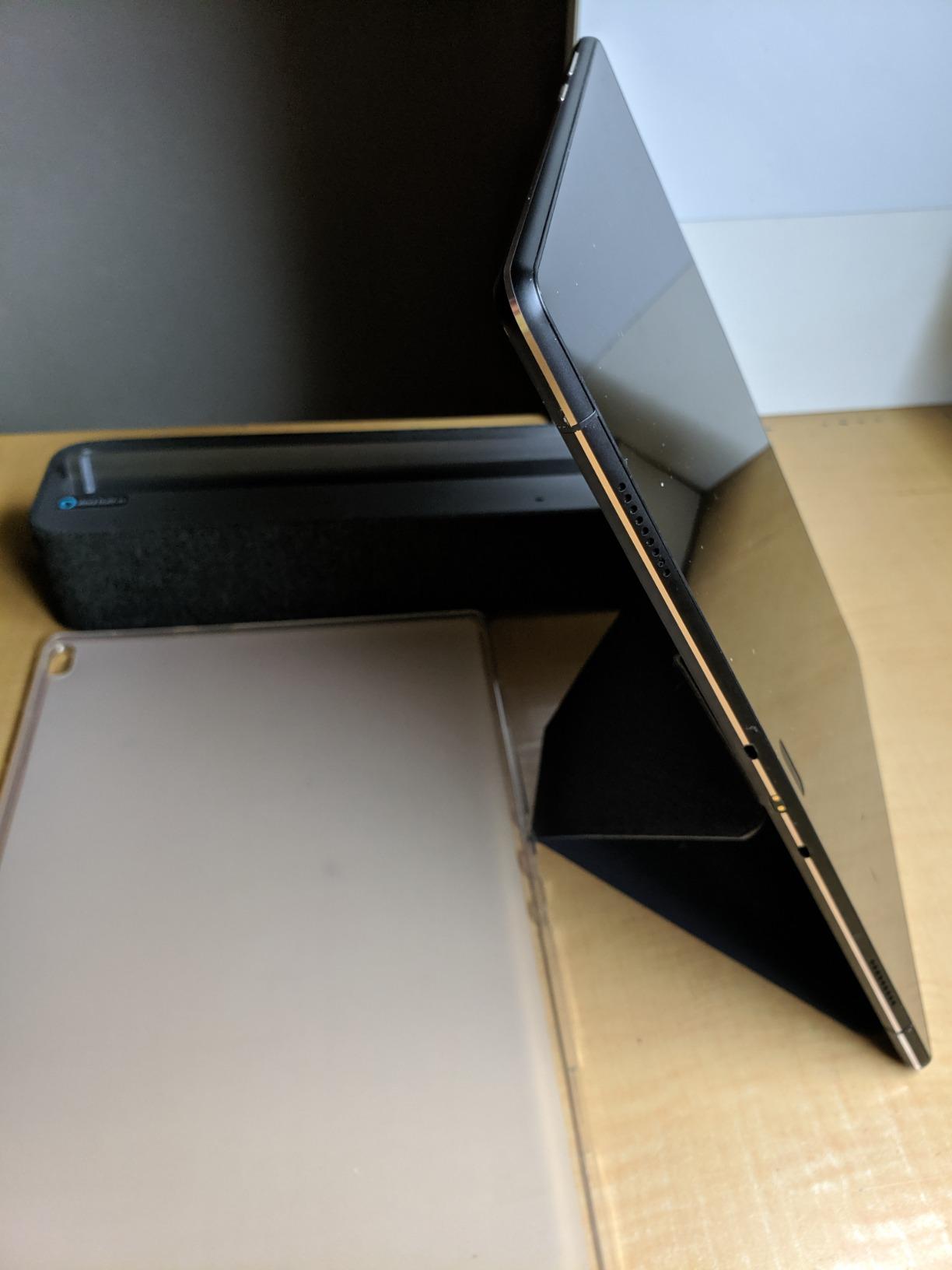
Storage is 64GB with microSD expansion up to 256GB, there is a 3.5 mm headphone jack, Bluetooth 4.2, Wi-Fi, GPS with GLONASS and USB 2.0, and the 7000 mAh battery runs up to 5 hours on average use. It weighs 15.52 ounces, so it is portable to the sofa, and it won a 2019 CES Best of Innovation Award for the dock concept.
The rating, though, is the lowest in the group at 4.0 from 1352 reviews, and the reason is the software base rather than the hardware. Android 8.1 Oreo is a 2019 operating system with limited ongoing support, and a 2019 model year means it will age faster than anything else here.
Who the Lenovo Smart Tab P10 suits best
It suits a household with mixed needs, where one person wants voice control and another wants to browse recipes, watch something or use an app. The separate fingerprint profiles suit a shared device better than any other option in this roundup, which is why it takes this badge rather than a ranking position.
It also suits anyone who wants a real screen for video calling rather than a smart display camera, since the 5 MP front camera is a genuine tablet camera. For a parent who already manages a tablet, adding the dock is a natural upgrade rather than a new thing to learn.
Where the Lenovo Smart Tab P10 falls short
It is a 2019 device on a 2019 operating system, and that is the core problem. Software support will end sooner than on anything else in this roundup, and some owners already report sluggish performance and limited storage headroom over time.
It is also heavier and larger than a purpose-built smart display, and setting one up is genuinely more complex than a display with a single purpose. For a non-technical user who only needs calls and reminders, this is the wrong recommendation, however good the dock looks.
6. Dragon Touch 15.6 inch Digital Calendar – the Best Smart Display for Seniors on a Kitchen Wall
Dragon Touch 15.6″ digital calendar chore chart – 1080P full HD interactive touchscreen, smart family planner, Hearth Display wall & desk mountable for seamless scheduling
15.6 inch 1080p interactive touch screen
Colour coded family scheduling
Chore chart
Pros
- Readable across a kitchen or dining area
- Delivers the same core scheduling as premium brands for far less
- No subscription for calendar chores rewards or meal planning
- Colour coded profiles with per-person photos
- Includes a levelling template so the wall mount goes up straight
Cons
- No search function for finding a specific event
- Meal planner and grocery list do not link to grocery pickup or delivery
- App does not work on Chromebook and colour assignments do not always sync from Google Calendar
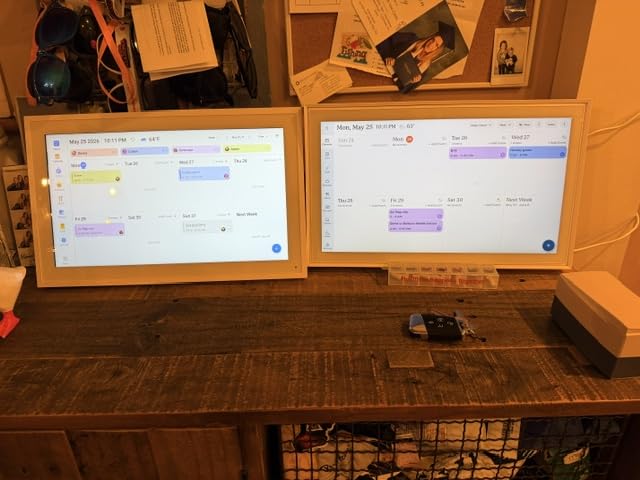
Buyers have been picking this deliberately as a lower-priced alternative to a premium e-calendar, and at 4.4 stars from 553 reviews the value argument holds. Fifteen point six inches of 1080p interactive touchscreen is the largest panel we tested, and reviewers confirm it reads clearly from across a kitchen or dining area, which is the only place most families will actually put it.
The core is the same as the smaller Dragon Touch: multiple iOS and Google calendars synced into one view, colour coded per family member with per-person photos, an interactive chore chart with a star and reward system for children, a weekly dinner planner and a grocery list, plus a photo screensaver mode. Crucially, none of that requires a subscription. It ranks first in Wall Planners on Amazon.
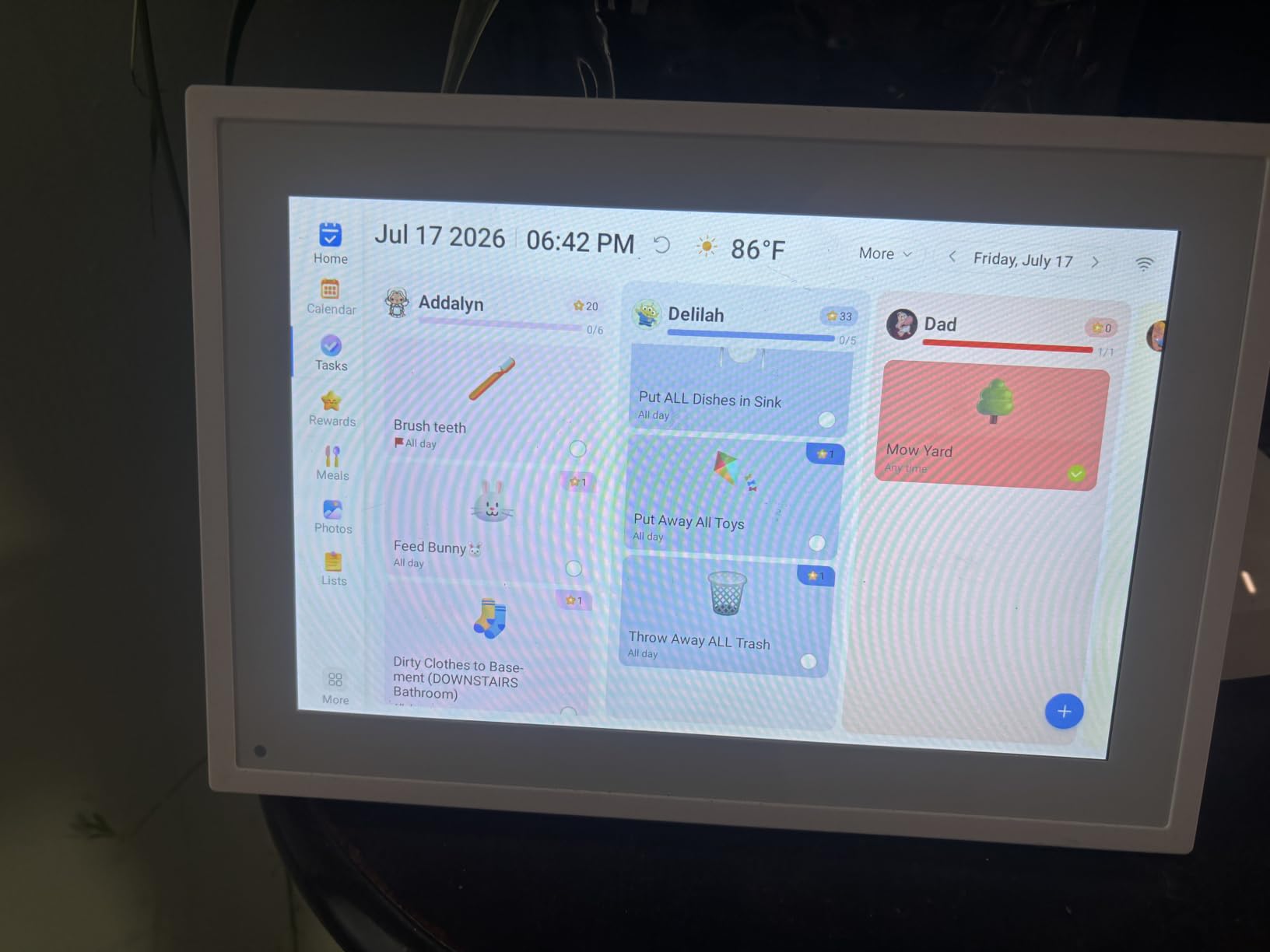
Mounting is handled properly. A levelling template is included so the wall mount comes out straight, and the stand piece lets it sit on a counter or a desk instead, which is the option we prefer on a kitchen island. It is corded electric and must be plugged in near an outlet, so plan the cable route before you commit to a wall position.
This is also where a display earns its place next to the cooking rather than replacing anything. The weekly dinner planner and grocery list do the thinking a person forgets to do, which is the argument behind our guide to ergonomic kitchen knives for seniors: the best tool is the one that reduces a task a declining grip or a tired mind makes harder.
Who the Dragon Touch 15.6 inch suits best
It suits a family that has decided a wall planner is enough and does not want a subscription attached to it. It also suits a household with a busy kitchen where a 10 inch panel would be read rather than noticed, and where everyone walks past the display several times a day.
It suits anyone who wants grandchildren to check off chores independently, since the star and reward system is the feature children engage with most. The 77 percent five-star share suggests the software is dependable for its core job.
Where the Dragon Touch 15.6 inch falls short
There is no search function, so finding one specific event means scrolling, and for a user with memory difficulties that is a genuine failure mode. The meal planner and grocery list do not link to grocery pickup or delivery services, which is the obvious next step and the most requested improvement in the reviews.
Colour assignments do not always carry over correctly from Google Calendar, and overlapping events display as grey with a dot. The app does not run on Chromebook, and a US power cord is included only, which is worth knowing before ordering outside the United States. The review base of 553 is also smaller than the Dragon Touch 10.1 inch, so treat the long-term reliability picture as less established.
7. Oqsonwu 10.1 inch Touchscreen Wall Organizer – the Best Budget Smart Display for Seniors
Digital Calendar 10.1″ Touchscreen, Smart Electronic Wall Organizer
10.1 inch touch screen
Google iCloud and Outlook sync
Meal planner with automatic grocery list
Pros
- Quick and simple setup with a friendly app
- Every feature unlocked with no subscription
- Visual meal manager generates a grocery list automatically
- Photo slideshow with programmable sleep and wake times
- Wall mountable and compact enough for a counter
Cons
- Smaller 10.1 inch screen shows less detail on a wall
- Built-in memory can fill up and stay full after a reset
- Lesser known brand with a thinner support record
The Oqsonwu 10.1 inch S101 is the pick when a family wants the full feature set and refuses to pay a subscription for it. Every feature is unlocked from the box. Real-time sync with Google Calendar, iCloud and Outlook, an interactive chore list with a star and reward system assignable from a phone, a to-do list, and a weekly meal manager that takes recipe uploads and generates the grocery list automatically.
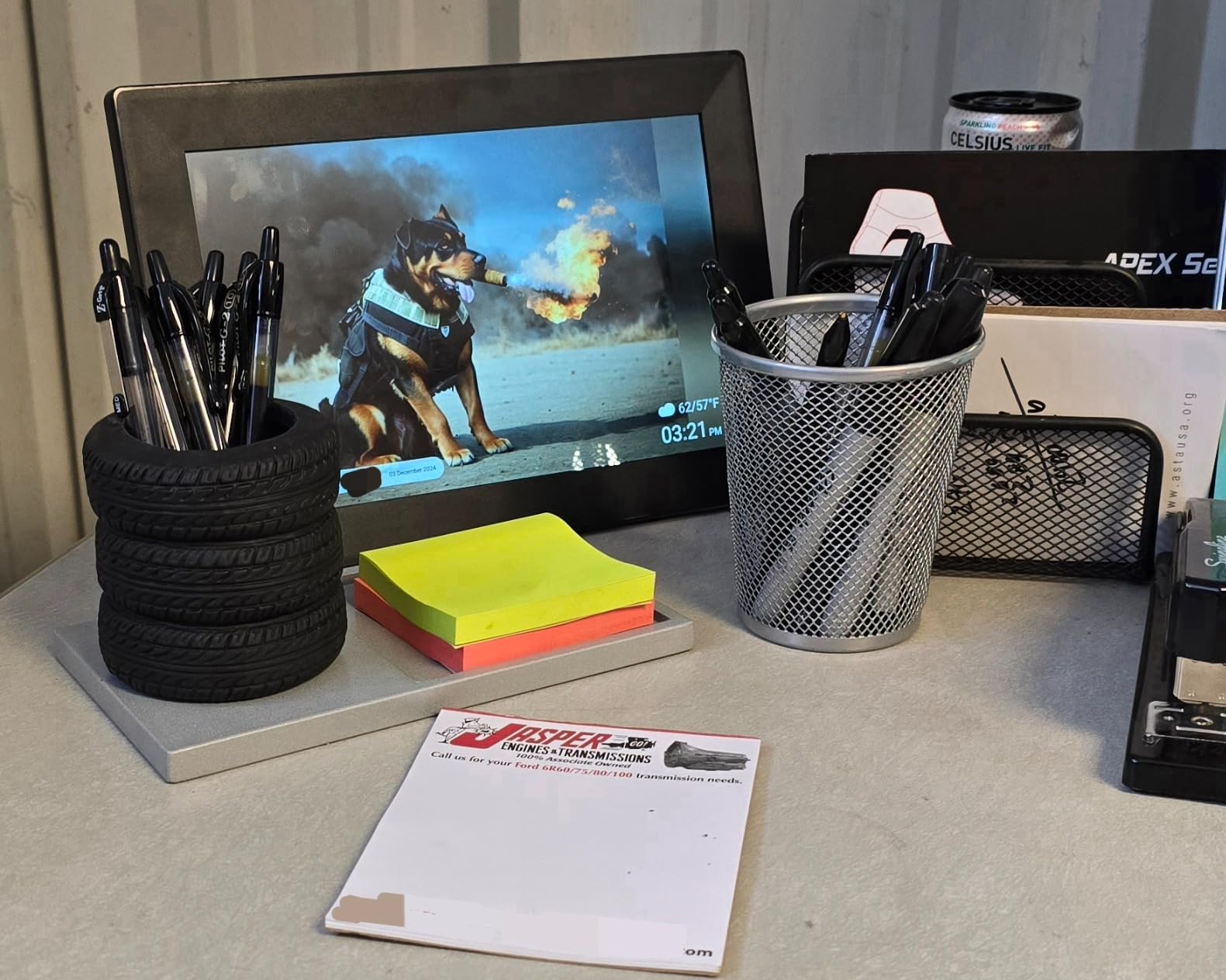
That last part is the reason it earns a place on a cooking site. Owners specifically report buying it to avoid both a large upfront cost and a recurring monthly fee on a premium e-calendar, and several mention meal planning as the primary reason. Photo slideshow screensaver, local weather, timely reminders and a smart sleep mode that saves power and wakes on its own round out a genuinely complete package.
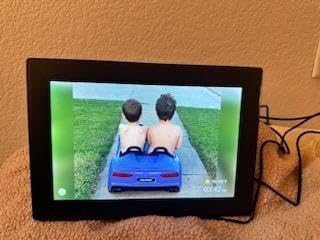
Setup is quick, the app is easy to navigate, and the whole unit is 1.4 pounds, wall-mountable, and small enough to sit on a kitchen counter if the household prefers that. It comes with a one year manufacturer warranty, and 76 percent of the 256 reviews gave five stars.
The honest caution is the size and the brand. Ten point one inches is the smallest wall panel in this roundup, and it shows less detail than a 15 inch model when mounted on a wall several feet back from the viewer.
Who the Oqsonwu 10.1 inch suits best
It suits a family that wants meal planning and grocery lists without a subscription, and a household on a tighter budget that still wants a touchscreen wall planner. It also suits anyone who simply does not want a camera or a microphone in the kitchen at all.
It suits a first gift that needs to be simple to set up. From unboxing to a synced family calendar takes minutes, which is exactly what you want when a parent is watching and asking questions.
Where the Oqsonwu 10.1 inch falls short
One owner reported the built-in memory filling up and refusing to accept new photos even after deleting images and resetting, which is a real risk for a device that doubles as a picture frame. The 10.1 inch screen is the limiting factor if it goes on a wall rather than a counter within reach.
It is also a lesser-known brand with a smaller review base and a thinner support record than the established e-calendar makers, at 256 reviews against 6880 for the Skylight. If the household needs help in three years, that difference is worth weighing.
8. Amazon Echo Show 11 with Adjustable Stand – the Best Smart Display for Seniors Who Follow Recipes
Amazon Echo Show 11 (2025 release) with Amazon Adjustable Stand | Graphite
11 inch Full HD vibrant touch screen
Adjustable stand with 40 degree tilt and 360 degree swivel
Built-in smart home hub
AZ3 Pro chip
Pros
- Large clear screen visible across a room
- Stand tilt and swivel are genuinely useful for recipes and calls
- Noticeably faster and more polished than older Echo devices
- Spatial audio fills the room
- Alexa+ answers multi-step questions conversationally
Cons
- Touchscreen can become unresponsive and need frequent reboots
- Early units arrived with software bugs needing updates
- Bundled adjustable stand adds meaningful cost
- Netflix availability is inconsistent on this bundle configuration
This bundle pairs the 2025 Echo Show 11 with the Amazon Adjustable Stand, and the stand is the reason to pick this specific listing. Forty degrees of tilt and 360 degrees of swivel means the screen can face the cook, angle up for someone sitting down, or turn towards the sofa. For a kitchen counter where somebody follows recipes, that is not a gimmick, it is the difference between a usable angle and a neck ache.
Underneath, it is the most capable hardware Amazon currently makes for this job. Eleven inches of Full HD vibrant touchscreen, the AZ3 Pro chip, spatial audio, and a built-in smart home hub. Reviewers consistently describe it as noticeably faster and more polished than older Echo devices, and Alexa+ handling complex multi-step questions conversationally is the standout behaviour.
The rating is excellent at 4.5 from 215 reviews, with 80 percent five stars, which is the highest share of any product here. The reason it sits at number eight is the sample size. Two hundred and fifteen reviews is a thin base compared with the Echo Show 5 or the Dragon Touch 10.1 inch, and a newer device has had less time to prove itself.
It suits a household that wants the largest voice-driven display with a camera and a smart home hub, and anyone who cooks from a screen. Photo slideshows from Amazon Photos run when it is idle, which is well liked for recalling memories, and spatial audio makes it a usable speaker for music and video rather than just a screen with a microphone.
Watch for the early-unit problems. The touchscreen can become unresponsive and need frequent reboots, and early units arrived with software bugs that required updates. Some owners report Alexa playing unexpected content such as foreign-language programming, and Netflix availability has been inconsistent on this particular bundle configuration. The stand itself adds meaningful cost over the device on its own, so compare against the same screen without the stand if the swivel is not the deciding factor.
Who the Echo Show 11 bundle suits best
It suits a person with reduced vision, because eleven inches at Full HD is the largest voice-driven display we tested and the 400-nit-equivalent brightness reads well across a kitchen. It suits a household already deep in the Amazon ecosystem with smart bulbs, a Ring doorbell and Prime.
It also suits anyone who wants a bigger screen than the Echo Show 8 but not the jump to a tablet. The stand means the physical position is adjustable rather than fixed, which is unusual at this screen size.
Where the Echo Show 11 bundle falls short
Reliability is the honest concern on a device this new. Unresponsive touchscreens and software bugs were the main complaints in the reviews we read, and neither is something a written command card can work around if the screen itself is frozen.
There is a 4 star versus 4.5 star tension across this roundup that is worth stating plainly: the Echo Show 8 has 7831 reviews at 4.3, and the Echo Show 11 has 215 reviews at 4.5. We rate by the combination of rating and evidence, and the larger, longer-proven sample is the safer recommendation for a device being handed to a parent.
How to Choose a Smart Display for Seniors
Start with the job, not the brand. If the parent will speak to the device and wants to be contacted, buy a voice-first display such as the Echo Show 8 or the Echo Show 5. If the household problem is that nobody knows what is happening today, buy a digital calendar instead. Those two jobs overlap far less than the marketing suggests, and buying the wrong one is the most common expensive mistake in this category.
Then match screen size to distance and vision. A 5.5 inch panel is for arm’s length on a nightstand. An 8.7 inch panel is for sitting or standing within about four feet. Anything from 10 inches up is designed to be read from across a room or mounted on a wall. For reduced vision, jump straight to the larger sizes; the Skylight Calendar 2 at 15 inches and the Echo Show 11 at 11 inches are the two clearest panels in this roundup.
Decide the ecosystem from the phones already in the house. These are Amazon devices, so an Amazon account, an Echo household and, for the fullest feature set, a Prime membership all matter. If the family is entirely Google-based, the equivalent route is a Google Nest Hub with Google Assistant, which we did not test here and cannot vouch for first-hand. The cheapest mistake to make is buying a second assistant for a house that already has one.
On privacy, name the specific controls rather than worrying in general. The Echo Show 8 and Echo Show 5 have a physical button that disconnects the microphone and camera, and the Echo Show 5’s camera has a built-in shutter. The digital calendars have no camera and no microphone at all. Restrict the Drop In contact list to named people your parent recognises, and treat a handwritten list of who is allowed to appear on screen as part of the setup, not an afterthought.
On hearing access, use what is built in rather than fighting it. Turn on text-to-speech replies and visual alerts so that a spoken answer is always matched by something on screen. Choose devices with stronger speakers if the listener turns up the volume, since the Echo Show 11 and the Lenovo dock both push far harder than their size suggests. Our picks for the best toaster ovens for seniors apply the same principle in a different room: choose the loudest useful version of the tool, not the smallest.
Finally, price the ongoing cost before you buy. Three devices in this roundup carry an optional paid plan: the Skylight Calendar 2 Plus Plan for photo screensaver, meal planning and rewards, Amazon subscriptions for features beyond the basics on the Echo devices, and an optional paid import tier on the Dragon Touch models. A two year total is more honest than a single number, and the Dragon Touch 10.1 inch and the Oqsonwu 10.1 inch are the only two here with everything unlocked and no recurring fee.
Set It Up Before You Give It
Pre-configure on your own account, in the room it will live in, before it is wrapped. Six steps, about twenty minutes, and it is the difference between a device used daily and a device switched off after a week.
Create or use a household account and name every contact clearly. Use labels a parent will recognise out loud, such as Grandson Michael, rather than a surname they have to decode.
Load the photo album before you hand it over. On the Echo models this is a photo memories slideshow; on the calendar models it is the screensaver mode.
Turn on the accessibility settings. Large text, high contrast, and text-to-speech replies should all be on from the start, because changing them later requires someone to navigate the menu again.
Turn off the ad-supported home screen and trim the content options. This is the most-reported complaint among owners and it is the fastest way to make a device feel calm rather than commercial.
Set the recurring reminders. Medication prompts, a morning weather check, and an evening call from a family member. Written reminders that repeat out loud at the same time each day are the feature people actually keep.
Write the command card. Three commands, in large print, on the fridge: how to call family, how to stop it talking, and how to make it quiet. A parent who knows three commands will use it. One who knows thirty will not start.
Two more things while you are there. Restrict the Drop In contact list to the people you would be comfortable appearing unannounced in front of your parent, and tell them who is on it. And check that the device is not the only way to reach the family, because a display that needs a subscription for a feature is a poor emergency route.
Who Should Not Buy a Smart Display
Some people in this category should buy something else, and saying so is more useful than another list. Consider a dedicated medical alert system instead if the parent needs fall detection, a monitored emergency response, or a worn device. A smart display is not a medical alert device, and no combination of settings on a screen in the kitchen changes that. Voice assistants can place emergency calls when asked, but the default behaviour is not a monitored response, and nobody should plan around it.
Skip a voice display if the parent has early-stage memory loss. A voice assistant that answers differently each time, or a parent who cannot remember what they asked for, produces frustration faster than it produces help. A passive wall calendar, which shows the same thing every time whether or not anyone asks, is a better fit. Our own view is that a written, non-digital routine posted in the same spot is better still, and not worth replacing.
Do not buy any of this without reliable Wi-Fi in that room. A smart display is a network device, and a weak signal produces lag that reads to a non-technical user as broken. Check the connection in the actual room, not the router’s position, before you spend anything. Our guide to the best countertop microwaves for seniors makes the same point in a different context: the right tool fails if the room cannot support it.
And do not buy one for a parent who will not have any support. The fastest route to a working device is still a family member with the account password and half an hour. Every device here needs a recurring reminder set, a contact list loaded, and a settings review later. Without somebody willing to do that, a simpler tool is the better purchase.
Frequently Asked Questions
How can I monitor my elderly parents at home?
The most practical option is a smart display the family owns rather than a hidden camera. Alexa Drop In lets a named contact appear on the screen and speak without your parent answering, and on the Echo Show 8 and Echo Show 5 a physical button disconnects the microphone and camera when you want privacy. For actual monitoring, a dedicated home monitoring system with a dedicated medical alert device is the correct category, because a smart display cannot detect a fall or call a monitored response.
What is the best smart device for elderly people?
The Amazon Echo Show 8 is the best all-round choice, because an 8.7 inch screen is readable from a few feet away, the centred auto-framing camera handles video calls without help, and the built-in smart home hub removes the need for a separate box. If counter space is tight, the Echo Show 5 does the same job in a smaller footprint. If the goal is a visible household routine rather than voice control, buy a digital calendar such as the Dragon Touch 10.1 inch.
Is the Echo Show suitable for elderly parents?
Yes, for most households, and it is the device most families in our testing ended up keeping. It answers spoken questions, shows results on a large screen, gives spoken recurring reminders, and handles video calls with a camera that frames people automatically. The two things to fix before gifting are the crowded swipe interface, which a written command card mostly solves, and the ad-supported home screen, which you can turn off during setup.
Which Amazon Alexa device is best for elderly users?
The Echo Show 8 is the best overall for a living room or kitchen, and the Echo Show 5 is the best for a bedside table or a small counter. The Echo Show 5 is the smaller and quieter option with a physical camera shutter, the Echo Show 8 has the larger screen and the auto-framing camera, and the Echo Show 11 is the choice for reduced vision or for following recipes on the counter using the bundled adjustable stand.
What are the privacy concerns associated with smart speakers?
The main concerns are an always-listening microphone, a camera in the room, and a home screen that carries advertising. Address all three by using the physical microphone and camera disconnect button during setup, keeping the camera shutter closed when no call is expected, restricting the Drop In contact list to named family members, turning off the ad-supported home screen, and reviewing and deleting voice history periodically. The digital calendars in this roundup have no camera and no microphone at all.
Can a smart display call 911?
A voice assistant can place an emergency call if you ask it to, but it is not a monitored response and it is not a medical alert device. If someone cannot speak clearly, if the device has no network connection, or if nobody is there to hear it, the call may not happen. For falls, chest pain, or any medical emergency, use a dedicated medical alert system with a worn device and a monitoring service.
Do smart displays work for someone with dementia or memory loss?
Often not, and it is worth saying plainly. A voice assistant gives a slightly different answer each time, which is disorienting, and a parent who cannot remember what they asked for tends to stop asking. A passive wall calendar, which shows the same schedule every time without anyone needing to request it, usually works better. Our view is that a written routine posted where the parent already looks is the most reliable tool of all, and a smart display is an optional addition rather than a solution.
Do smart displays require good internet?
Yes. A smart display is a network device, and video calling, calendar syncing and voice responses all depend on a connection. Weak Wi-Fi in the room produces lag and dropped calls, which a non-technical user reads as the device being broken. Check the signal in the actual room where it will sit, not just near the router, before you buy.
What screen size is best for seniors?
Match the screen to the viewing distance. A 5.5 inch display works at arm’s length on a nightstand, an 8.7 inch panel reads from about four feet away, and anything from 10 inches up is meant to be seen from across a room or mounted on a wall. For reduced vision, go larger rather than trying to compensate with settings, which means a 15 inch calendar panel or the 11 inch Echo Show 11.
Our Verdict on the Best Smart Displays for Seniors in 2026
The Amazon Echo Show 8 is the best smart display for seniors we tested, and we would put it in a kitchen or living room without hesitation. The Amazon Echo Show 5 is the one to buy when space or budget is the deciding factor, and buying both, one bedside and one kitchen, is a very common setup that works. For anything where the schedule matters more than the conversation, the Dragon Touch 10.1 inch Digital Calendar is the strongest pick in the group, and the Skylight Calendar 2 wins on screen size if the extra cost is not an issue.
Set it up before you give it, turn off the advertising, restrict who can appear on the screen, and write three commands on a piece of paper. Those fifteen minutes are worth more than any specification on any of these screens. And if your parent needs fall detection or a monitored emergency response, buy a medical alert system instead, because a smart display is a communication tool, not a safety device.
Last reviewed in 2026. We re-test the whole lineup when a major generation changes, and we update the ratings and review counts we quote at that time.